Journal Import using File-Based Data Import (FBDI)
As part of the data migration process, when you are moving financial data from your legacy system to Oracle ERP Cloud, you might need to import journals in bulk. We often use File-Based Data Import (FBDI) for this purpose. In is blog I’ll discuss how the process of importing journals into Oracle Fusion using FBDI.
On a high-level, the following steps are involved :
1. Download Template
2. Enter required data in the template
3. Generate ZIP File for Upload
4. Upload ZIP File
5. Load Data to Interface tables
6. Import Journals from interface to base tables
But before going into the details of the File Import Process, let us understand the important and mandatory fields required when you create a journal entry manually from the application. Provided you have the necessary Roles assigned and have the necessary access, you will be able to create a journal manually, using the following navigation.
Click on Main Menu > General Accounting > Journals.

Click on Tasks > Create Journal.

Once you are in the Create Journal page, try to find out the mandatory columns. The mandatory columns will be marked with ‘*’. The following screenshot shows the important columns/sections.

The following table describes the significance of each of the above columns, the navigation of how you can check the necessary information from the application as well as through a query.
| Sl# | Column Name | Column Description | Navigation | Query |
| 1 | Journal ID/Journal Name | Ledger Id/Ledger Name for the Journal Entries data | Setup and Maintenance > Search > Manage Primary Ledgers | SELECT DISTINCT gl.ledger_id , gl.name FROM gl_ledgers gl |
| 2 | Accounting Date | Effective Date of the Journal Entry | ||
| 3 | Journal Source | Journal Entry Source Name for the transaction | Setup and Maintenance > Search > Manage Journal Sources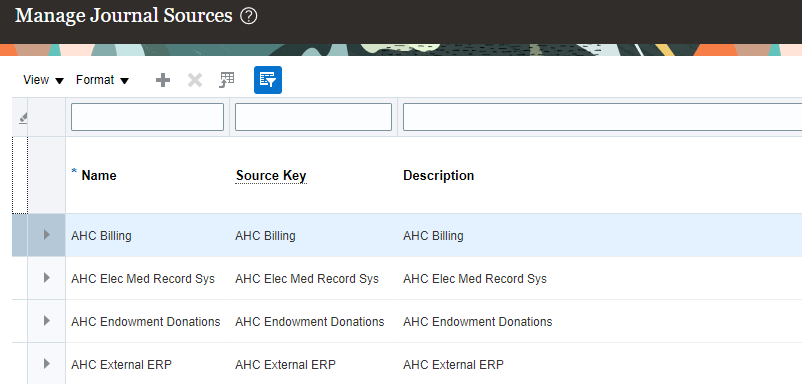 | SELECT DISTINCT gjst.user_je_source_name FROM gl_je_sources_tl gjst WHERE gjst.language = userenv(‘LANG’) |
| 4 | Category | Journal Category name of the transaction | Setup and Maintenance > Search > Manage Journal Categories | SELECT DISTINCT gjct.user_je_category_name FROM gl_je_categories_tl gjct WHERE gjct.language = userenv(‘LANG’) |
| 5 | Currency | ISO Country of the transaction | Setup and Maintenance > Search > Manage Currencies | SELECT DISTINCT fct.currency_code, fct.name FROM fnd_currencies_tl fct WHERE fct.language = userenv(‘LANG’) |
| 6 | Accounting Period | Period Name of the Journal Entry. This is not a mandatory column in the FBDI Template and is derived from the Accounting Date if left NULL. The column is mainly used for populating Adjustment Periods for Journal Entries | ||
| 7 | Journal Line Info | Includes information like valid Account Code Combination, Dr, Cr, Journal Line Description, etc for the Journal Lines |
Now that we have looked at the different important/mandatory columns, let us look at the process of importing journals through FBDI templates in details.
1. Download FBDI Template
Download the latest version of the XLSM template from Oracle Docs. While writing this blog, the latest version is 24A. Link to this version can be found here. Make sure you download the latest version.

2. Prepare file with necessary data
Open the file. You will see two tabs in the spreadsheet:
- Instructions and CSV Generations : Contains general instruction of the process and best practices for preparing and loading data. This tab also contains information to correct import errors, if any. The “Generate CSV File” button uses macro and is used to generate a ZIP file containing one or more CSV files.
- GL_INTERFACE : Prepare the data data in this tab which needs to be imported.
Enter the necessary data in the GL_INTERFACE tab. All mandatory information(as discussed above) should be inserted. Additionally, enter the information in non-mandatory columns, as per your business requirements.

3. Generate ZIP File for Upload
Navigate to the Instructions and CSV Generation tab and click the Generate CSV File button.

Save the ZIP file and the CSV File.

4. Upload the ZIP File
To Upload the file, navigate to Tools > File Import and Export.
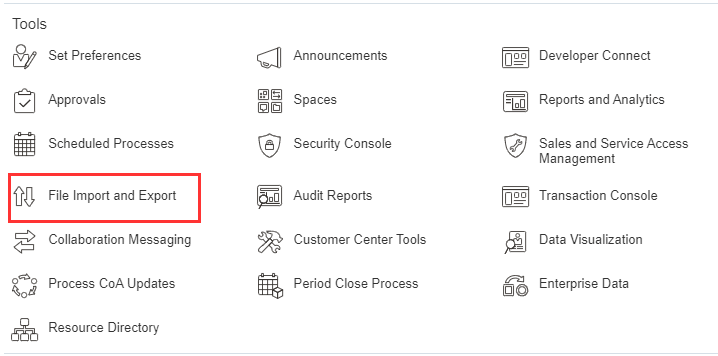
Click on the Upload button( + ). Select the ZIP File and click on Open, as shown below.
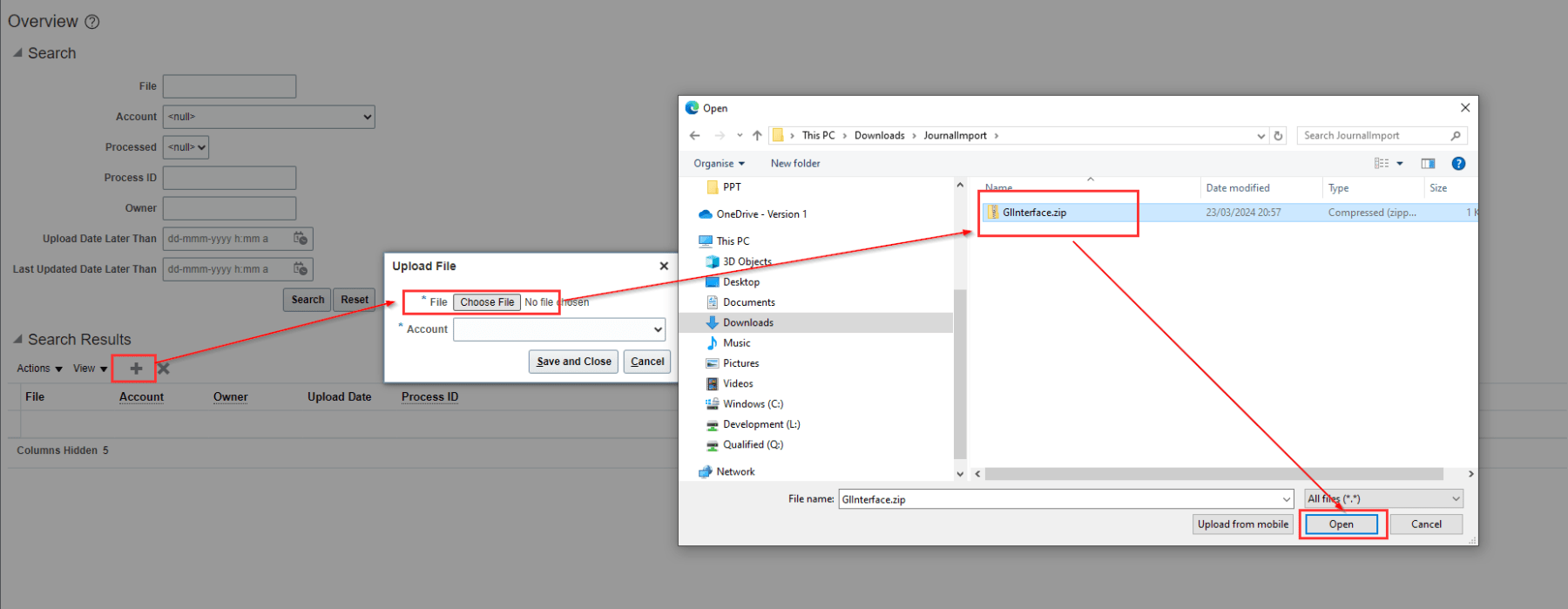
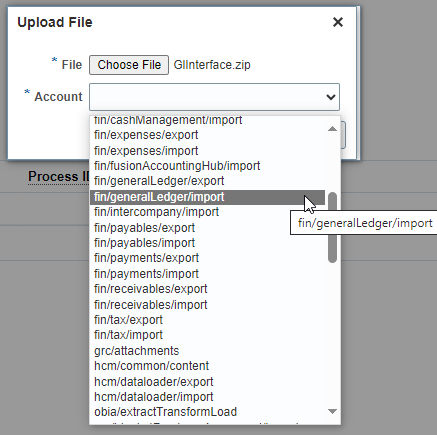
Select fin/generalLedger/import as the Account. Save and Close.
5. Load Data into the Interface tables.
To load the data from the zip file to the interface tables we need to execute the Load Interface File for Import ESS job. To run the ESS job, navigate to Tools > Scheduled Processes.

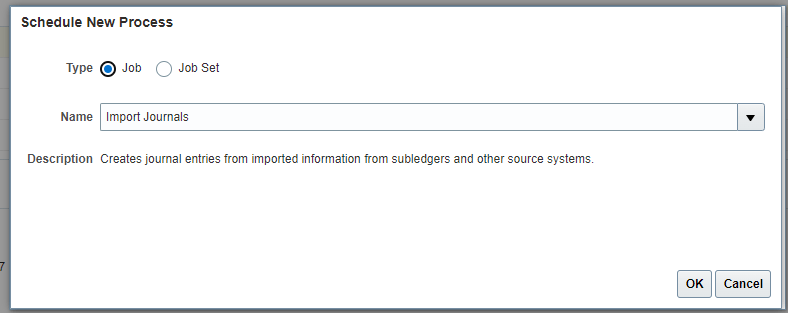
Click on Schedule New Process button. Search for the job and click OK.

The Parameters window will open up. Select Import Journals as the Import Process and then for Data File, select the zip file you had uploaded in step 4.. Then click Submit.
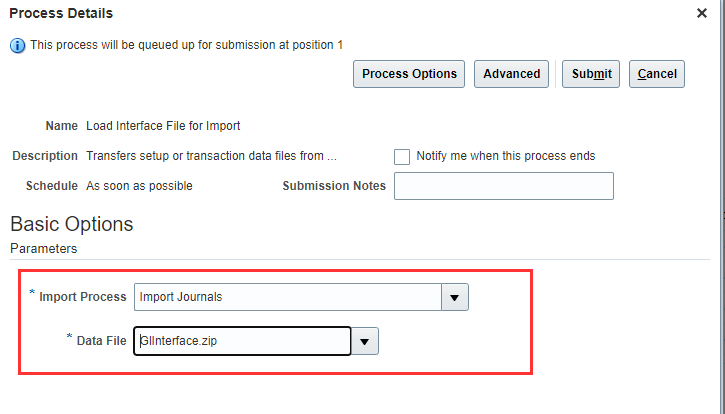
The Load Interface File for Import job is submitted. It spawns two child processes – Transfer File and Load File to Interface. Wait till all the three jobs completes with status Succeeded.

You can check the log file for no. of records that were successfully loaded in GL_INTERFACE table, or for failed records.


At this point yo can execute the query below to check the interface table.
Select * from gl_interface where REFERENCE1 = :p_journal_batch_name
6. Import Journals
Once the data is in the Interface Table, all we need to do is execute the seeded ESS Job called Import Journals. Click OK.
Populate the parameters as shown below. If you have populated the Interface Group Identifier column in the template, then the same value would be available in the Group ID LOV. The Interface Group Identifier column is not a mandatory field, however, it can be used for grouping the journals. It gives the option to select specific journals during the import and hence gives you a better control.
Click Submit.

The Import Journals program us executed. It spawns a another child program called Import Journals: Child. Wait for the programs to succeed.

Once the ESS Jobs completes successfully, you can check the details from the log file. In case of any errors, the log file would point the errors.

Congratulations! We have successfully imported a journal using FBDI. To confirm that the load is successful, navigate to the Journals page and search for the Journals.

I hope you find this post helpful. If you do like this post, please let me know in the comments section below, and share with friends and colleagues. In case you have any further queries, please feel free to reach out and I’ll try my best to get back to you.
 RishOraDev's Oracle Blogs