Manage File Server Settings in Oracle Integration 3
In one of the previous posts we learnt how to create a Oracle Integration 3 instance. In the next one, we saw how to enable the File Server. In this particular post, we will explore some of the basic configuration for the File Server from the Oracle Integration instance. More specifically, we will look into the following topics:
- Navigate to File Server Settings
- Basic File Server Settings
- Configure Users
- Configure Groups
- Manage Permissions
- Manage Folder
- Connect to File Server using SFTP Client
So lets crack on!!!
Navigate to File Server Settings
To navigate to File Server Settings, login to the OCI Console and click on Developer Services > Integration. Select the compartment where you have created your OIC instance. Click on your instance and then click the Open Console button from the menu to open up Oracle Integration Cloud. The Oracle Integration environment opens up. In the navigation pane, click Settings.

Then click File Server.

Click Settings.

Starting and Stopping the File Server
You can start and stop the File Server from the Start/Stop button under SFTP Server Status.

Basic File Server Settings
Each file server comes with 500 GB of free space. You can see the total space and the % of space used under storage. If the available space falls below 10%, a warning is displayed. If no space is available, a red indicator is displayed.

You can set the idle time, in seconds, for the File Server under General > Idle Time, after which the File Server is disconnected. The default value is 240 seconds and the maximum value 300 seconds.

Note down the host IP address, hostname and port of the File Server. We will use these to connect to the server using an SFTP Client.

Under Default Home Folder Configuration for Users, you can view the user home folder’s base path and specify the folder’s default permissions. Change the permissions as per requirement.

Under Default Home Folder Configuration for Groups, you can view the group home folders and specify the folder’s default permissions. Change the permissions as per requirement.

Under Security, you can set the Authentication Type. The available authentication types are password, SSH key based, or either. Select an authentication type and change security settings as needed.

You can chose the Signature Algorithm. The available options are:
| RSA algorithms | rsa-sha2-256 rsa-sha2-512 ssh-rsa | |
| EdDSA algorithm | ssh-ed25519 | |
| ECDSA algorithms | ecdsa-sha2-nistp256 ecdsa-sha2-nistp384 ecdsa-sha2-nistp521 |
You can chose from the following Key Exchange Algorithms.
| diffie-hellman-group-exchange-sha256 | |
| diffie-hellman-group14-sha1 |
File Server supports the following algorithms for following Ciphor Suites.
| aes128-ctr | |
| aes192-ctr | |
| aes256-ctr |
File Server supports the following algorithms for Message Authentication.
| hmac-sha2-256 | |
| hmac-sha2-512 |
File Server supports the following Compression Methods.
| Zlib | |
| zlib@openssh.com | |
| No Compression |
Configuring Users
You can give access to users to use the File Server from the Users page. You can create users from Oracle Identity Cloud Service. I have discussed how to create Users in this post.
To provide access to users, click Settings, then File Server, then Users.
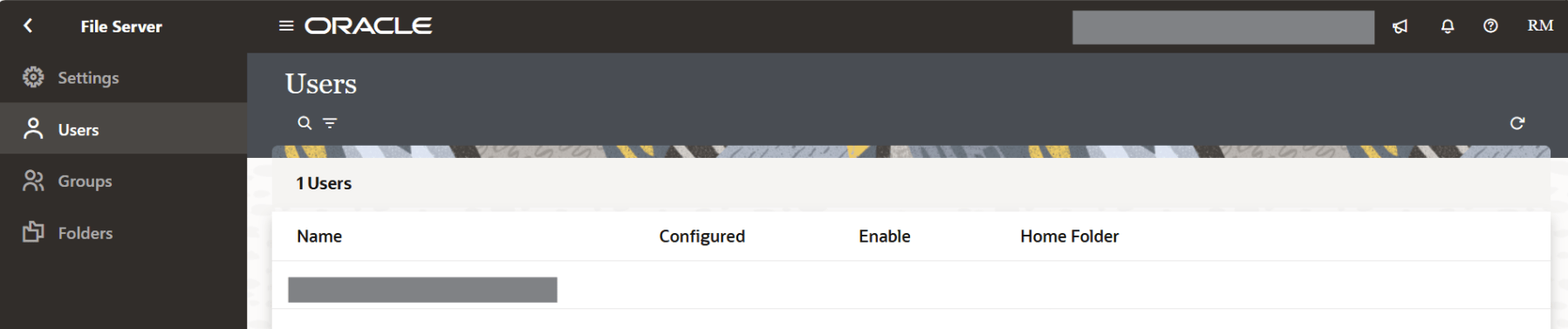
The Users page displays a list of user identities from Oracle Identity Cloud Service. For the user you want to give access to File Server, click on the Configure icon.

Only enabled users can access File Server. Enable/Disable access to the SFTP Server for the user by toggling the slider, as shown below. If you chose key based authentication as the authentication type on the Settings page, you can configure the user’s public ssh key under Authentication Public Key. You can upload, view, or delete the selected user’s public key.
You can specify how the home folder is defined for the users under Home Folder Type.

Once complete, click Save.

Now you will see that SFTP Server will be enabled for the user.
Configuring Groups
Instead of individually giving access to users, you can give access to groups to use the File Server from the Groups page. You can create groups from Oracle Identity Cloud Service. I have discussed how to create Groups in this post.
To provide access to users, click Settings, then File Server, then Groups.

The Groups page displays a list of groups from Oracle Identity Cloud Service. For the group you want to give access to File Server, click on the Configure icon.
Enable/Disable access to the SFTP Server for the groups by toggling the slider, as shown below.
You can specify how the home folder is defined for the users under Home Folder Type.

Once complete, click Save.
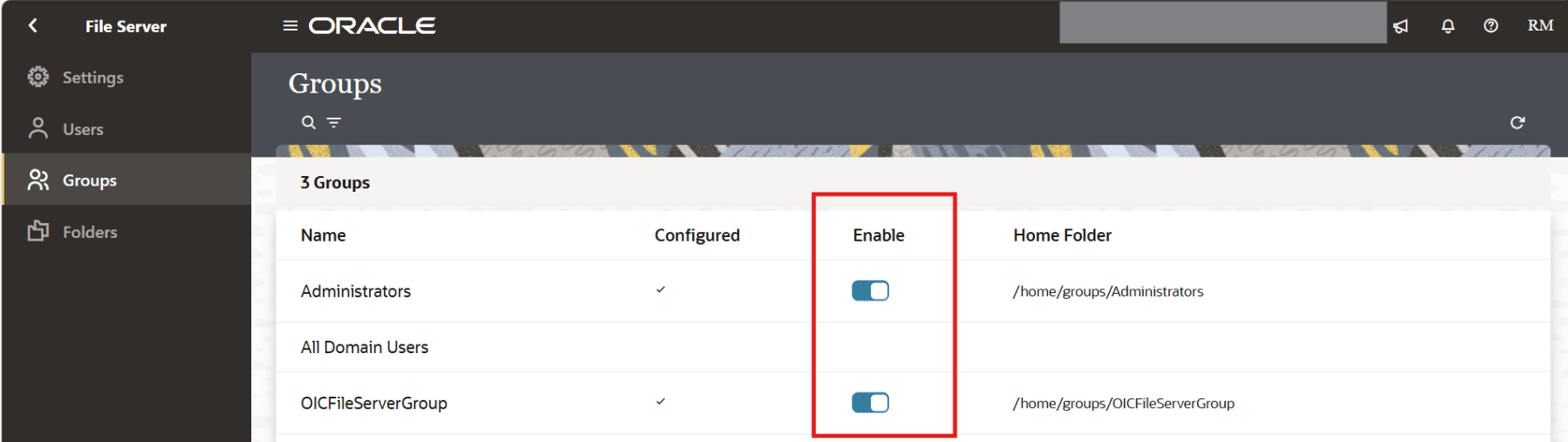
Now you will see that SFTP Server will be enabled for the group.
Manage Folder
You can use the folders page to create and manage folders and set their permissions. Click Settings, then File Server, then Folders.

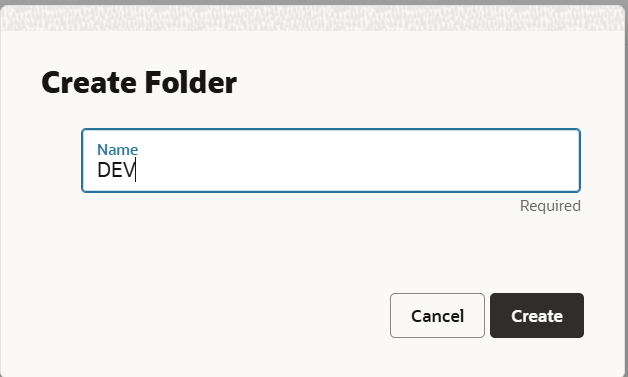
To create a new folder, click Create on the top-right-hand corner. Enter a valid folder name. Then click Create.
Once the folder is created, hover click in the Permissions icon.

In the Permissions page, click on the Add Permissions button.

For the folder we created, we can add permission at either for the Users or for the Groups. In the screenshot below, we grant access to the DEV folder to the Groups – Administrators and OICFileServerGroup.

Once the Groups/Users are added, then we add the necessary permissions, by clicking on the relevant check boxes.
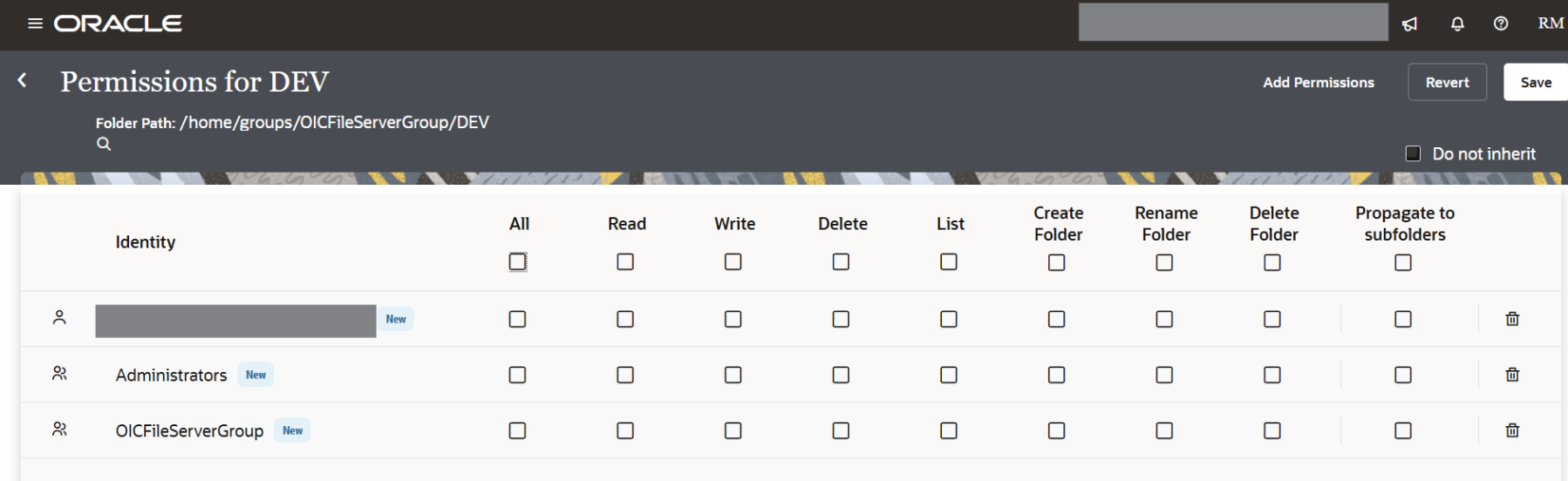
Click Save.

Connecting to the File Server using SFTP Client
Once you have configured the File Server, you can use any SFTP client to the File Server. Here we will use WinSCP.
Navigate to the Settings page of the File Server and note down the Hostname/IP and Port.
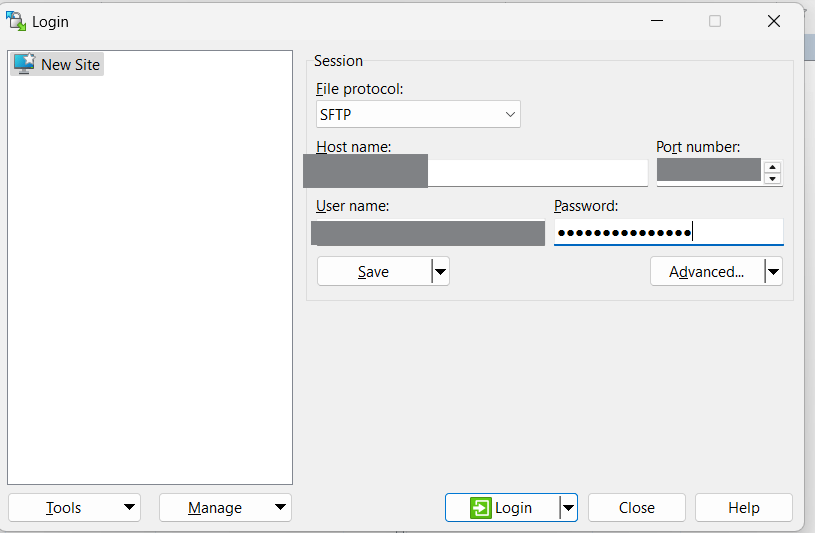
Now open up WinSCP. Create a new connection by entering the File Protocol as SFTP, Hostname/IP under Host name. Enter the Port number. Enter the User name and Password and click Login.
Click Accept.

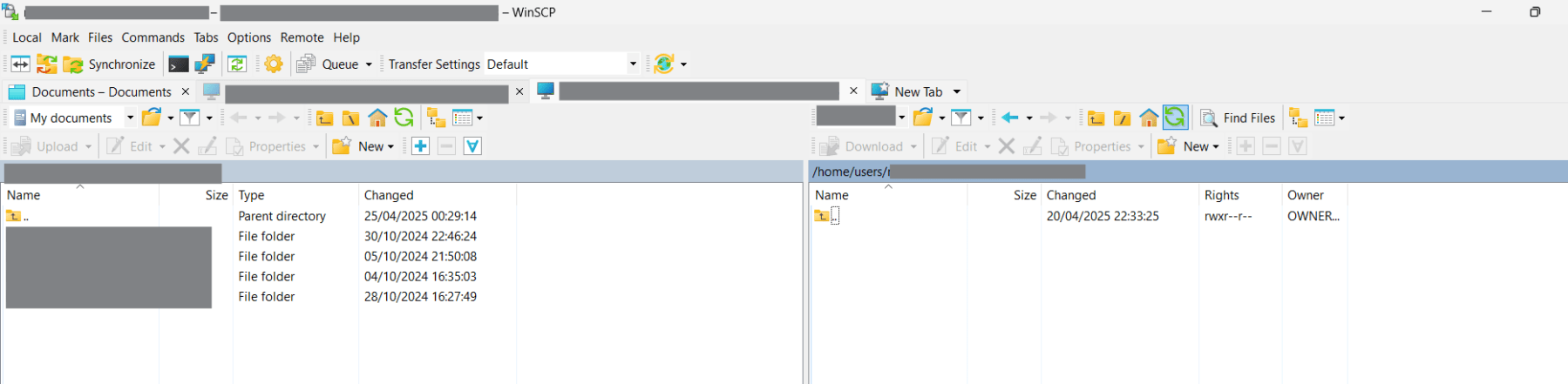
If the authentication is successful, you will be connected to the SFTP Server, The default location will be the base folder that you have configured for the user/group.
Hope this is useful. Happy learning!
References
 RishOraDev's Oracle Blogs