Encrypting Files with PGP in OIC: A Step-by-Step Guide
In today’s integration landscape, secure file exchange isn’t just a best practice – it’s a non‑negotiable requirement. Whether you’re exchanging data with external third-party applications, moving files across internal systems, or automating business processes, encryption plays a central role in protecting sensitive information. Oracle Integration Cloud (OIC) makes this easier by providing built‑in support for PGP (Pretty Good Privacy) encryption and decryption through the Stage File action.
In this step‑by‑step guide, I’ll walk you through how to encrypt files in OIC using PGP keys, from generating the keys to building and testing two simple integrations. The goal is to give you a clear, practical blueprint you can reuse in real projects – whether you’re securing SFTP transfers, automating partner onboarding, or building compliance‑ready integrations.
So let’s crack on!!!
Generate PGP Keys
You’ll need a public/private PGP key pair to encrypt and decrypt the file. You can use any PGP tool. In this example, I’m using PGP Key Generator. Enter the required details. For this example, I’ve selected RSA as the algorithm, a key size of 2048 bits, and set the key to expire in one year. Choose a strong passphrase, then click Generate Key to create your PGP key pair.
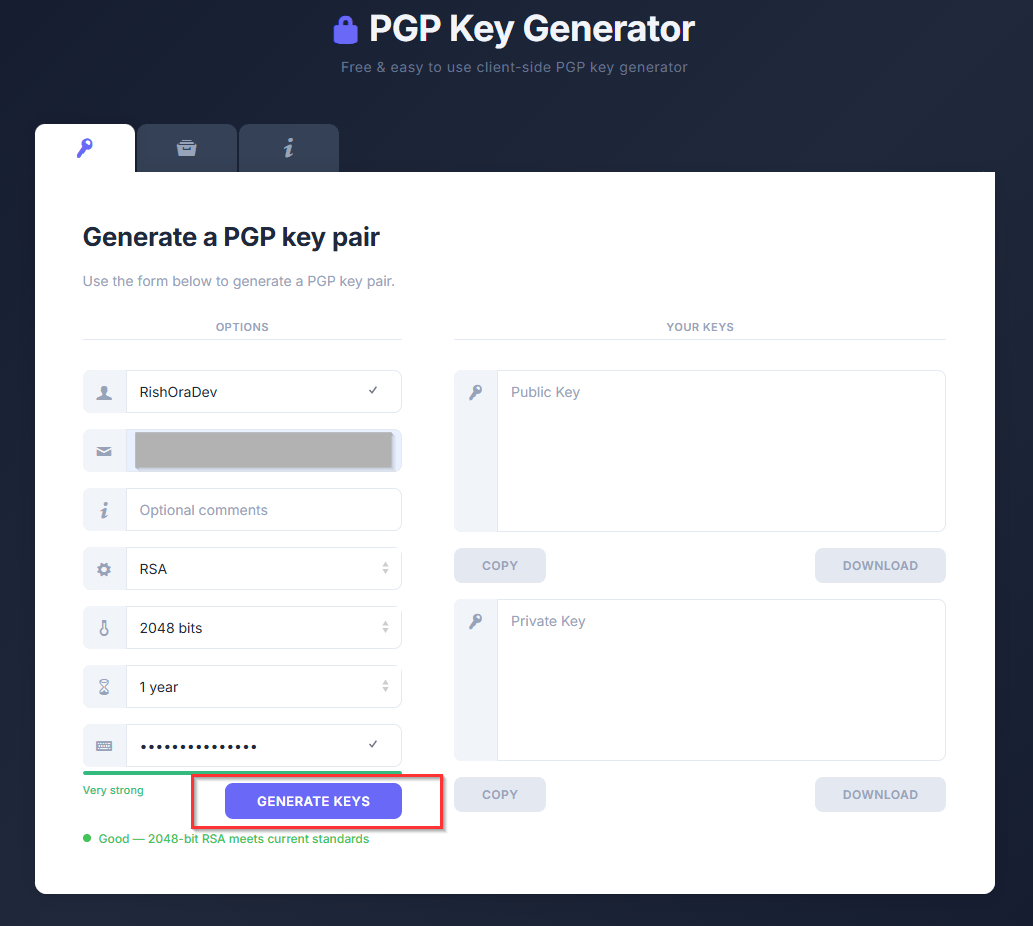
Download the Public and Private Keys in your local directory. Now we need to upload the PGP keys to OIC Console.
Upload PGP Keys to OIC
To upload the PGP keys, login to your OIC console and navigate to Settings > Certificates.
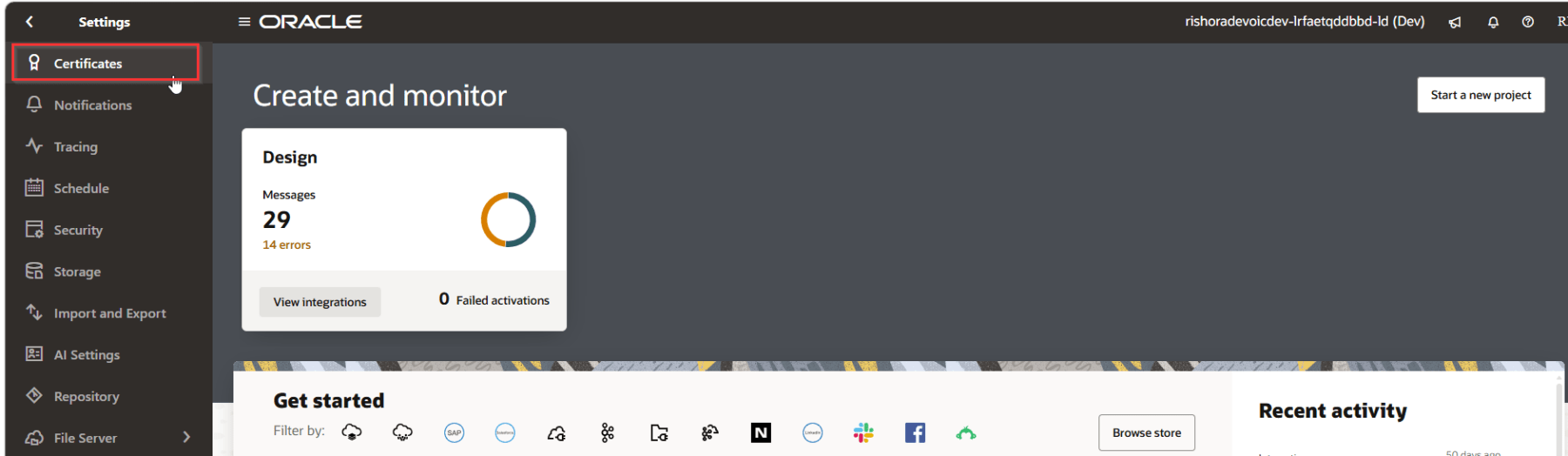
Click on Upload.
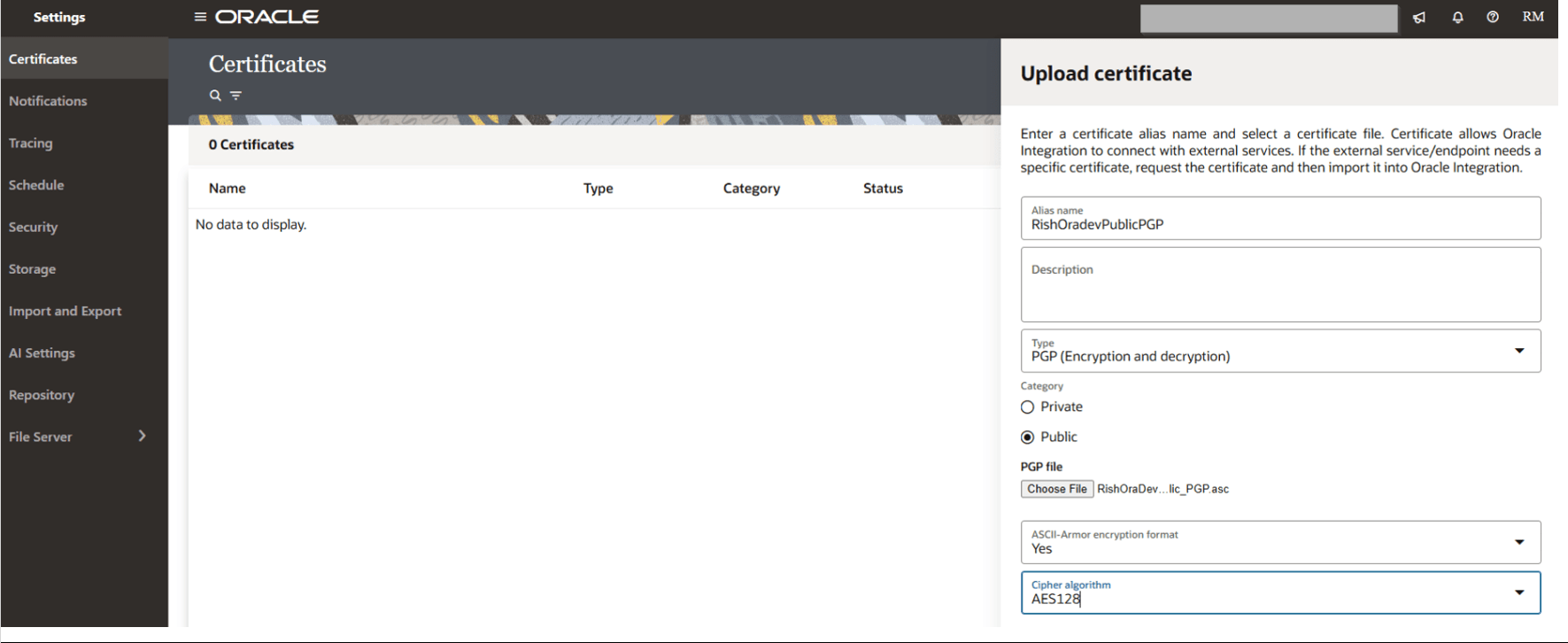
Upload the Public Key first.
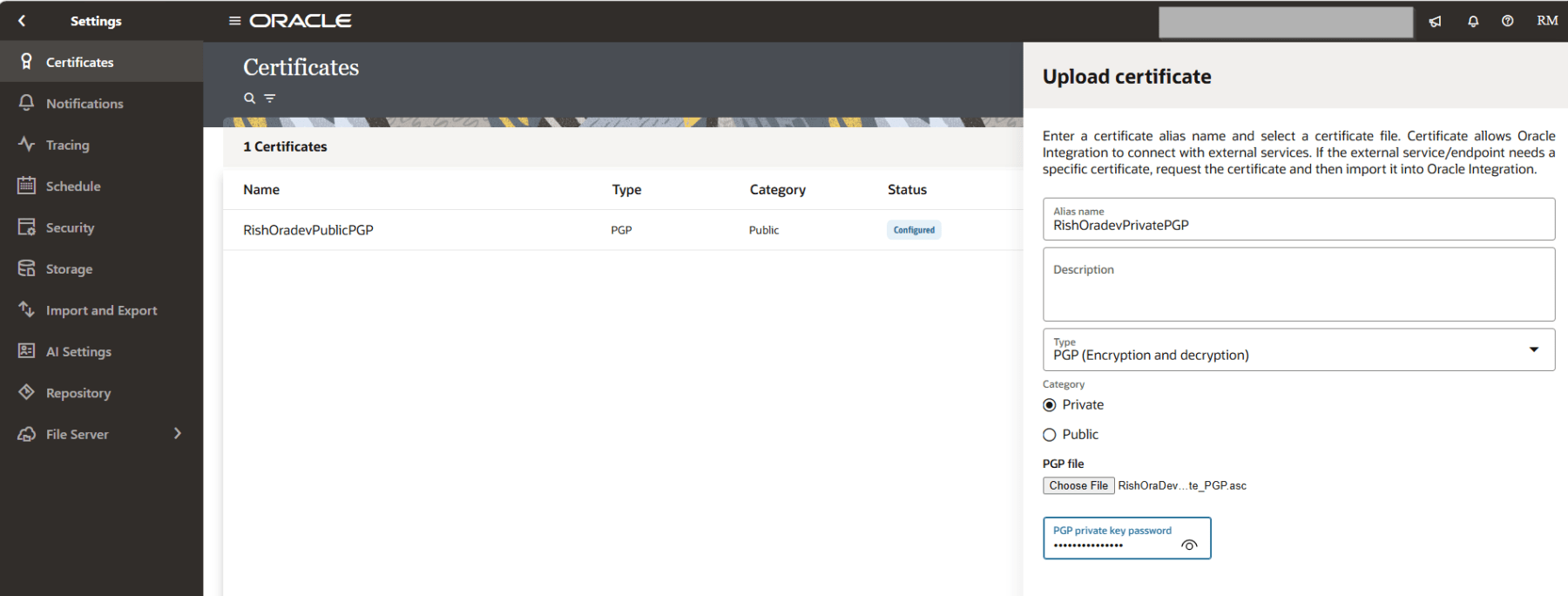
Now upload the Private Key. Use the same passcode you used while generating the keys.
We have successfully uploaded our Public and Private key pairs. We are going to use these in our integration.

Encrypting a File using OIC
Now that we have the public and private key pairs uploaded under certificates, it is now time to create our integration to encrypt a sample file. We will be using the public PGP key to encrypt the file. On a high-level, the “Encrypt File” integration has the following steps.
- Accepts a CSV file as input
- Encrypts it using a public PGP key
- Sends the encrypted file out (e.g., via email)
For this demo, we’ll create an App-Driven Orchestration that accepts a file, encrypts it, and sends it out through email. To create the new App-Driven Orchestration, navigate to Integrations > Integrations. Click Create > Application.

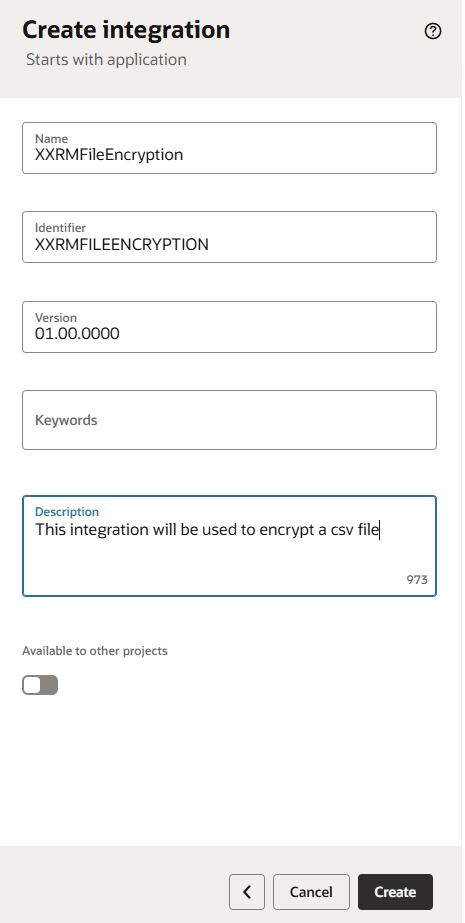
Provide a valid Name and Description to the integration and click on Create.
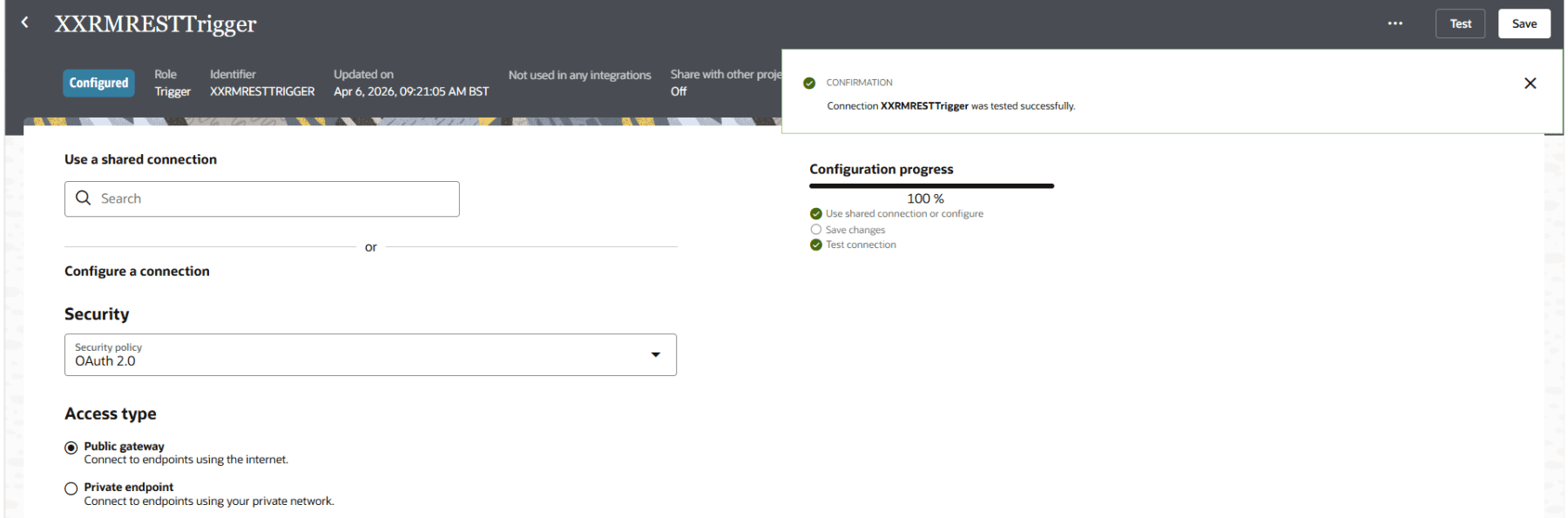
Assuming that you already have a REST Connection created, we need to add a REST Trigger. I have provided a screenshot of the REST connection I will be using, below.
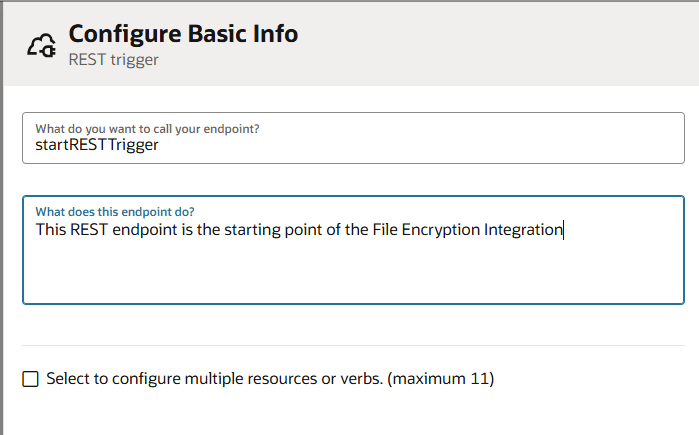
Add the REST Trigger to your integration. Under Configure Basic Info, provide the endpoint name and description and click Continue.
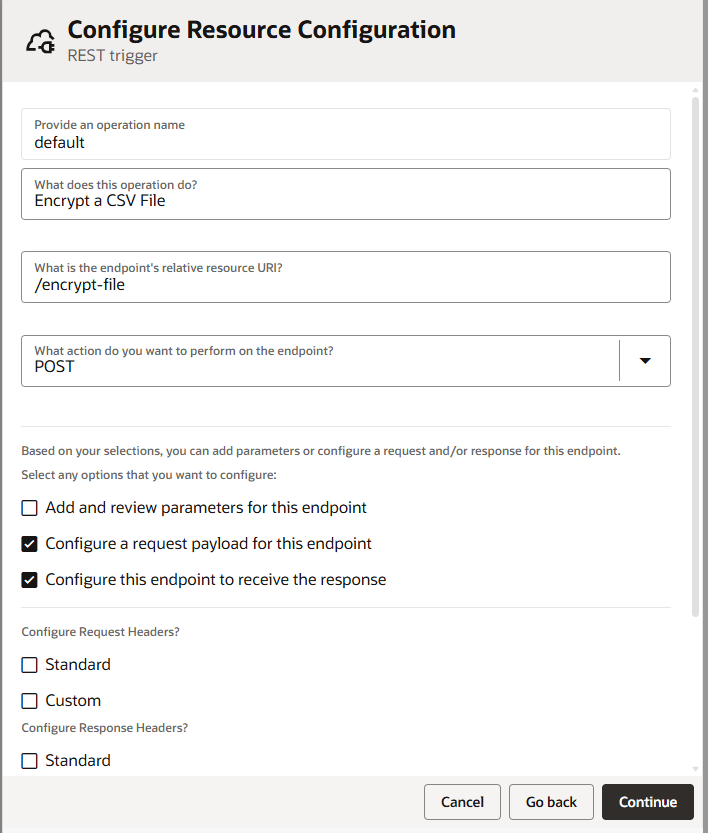
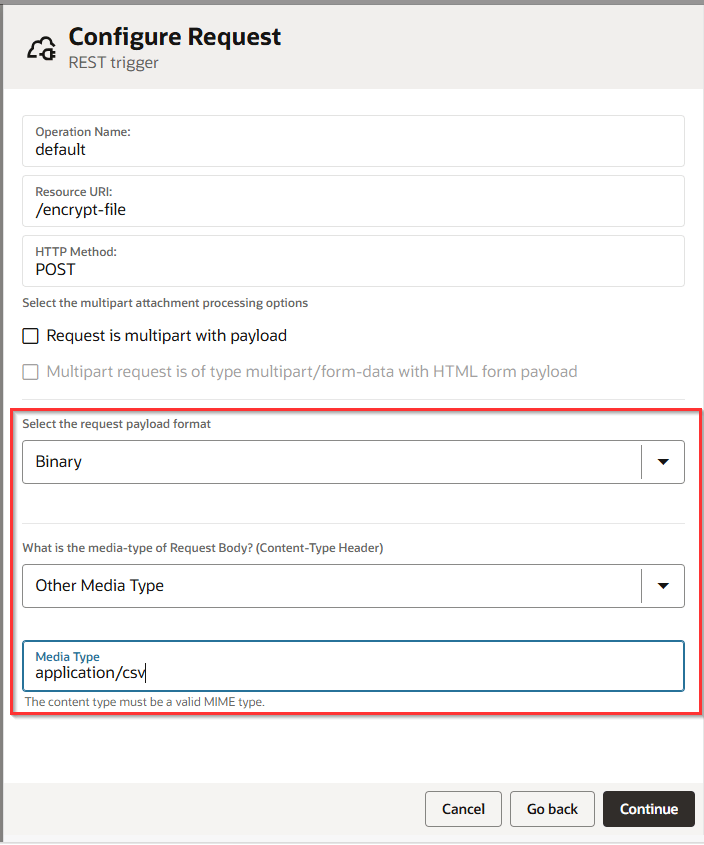
Specify the endpoint URI and set the method to POST. Enable the options to configure both the request and response payloads. Click Continue.
Now configure the Request payload as shown below. Click Continue.
Configure the Response Payload.
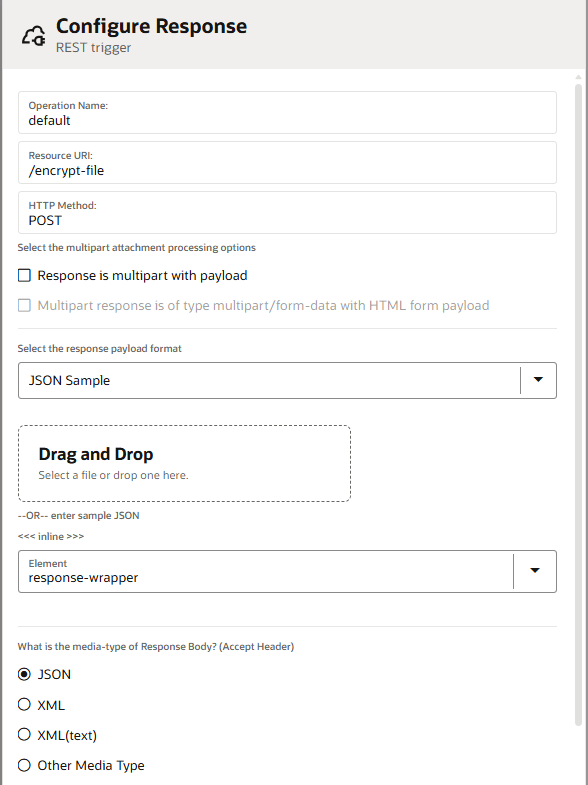
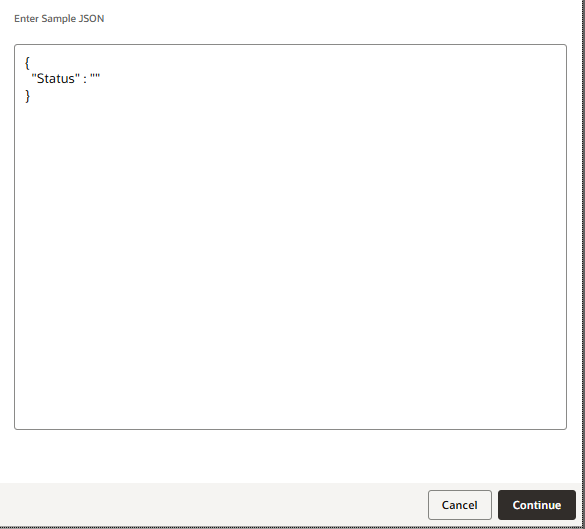
We will keep the response payload simple and add a field to track the status.
Next, add a Stage File action for encryption.
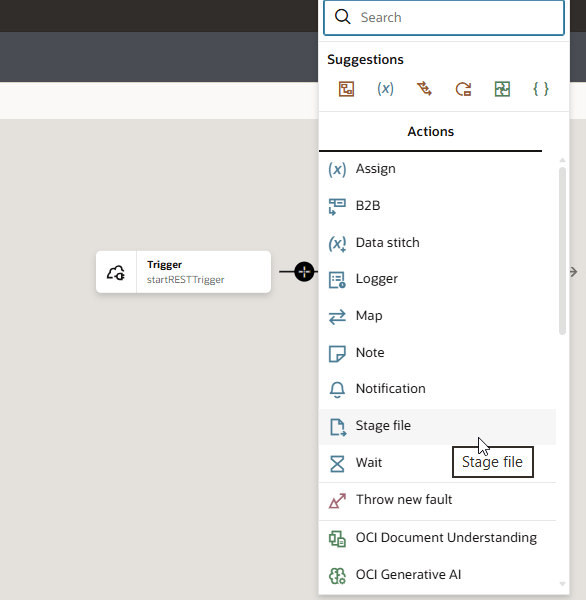
Select Encrypt File Operation. Add the File Reference, File Name and Output Directory. Select the Public PGP Key uploaded earlier.
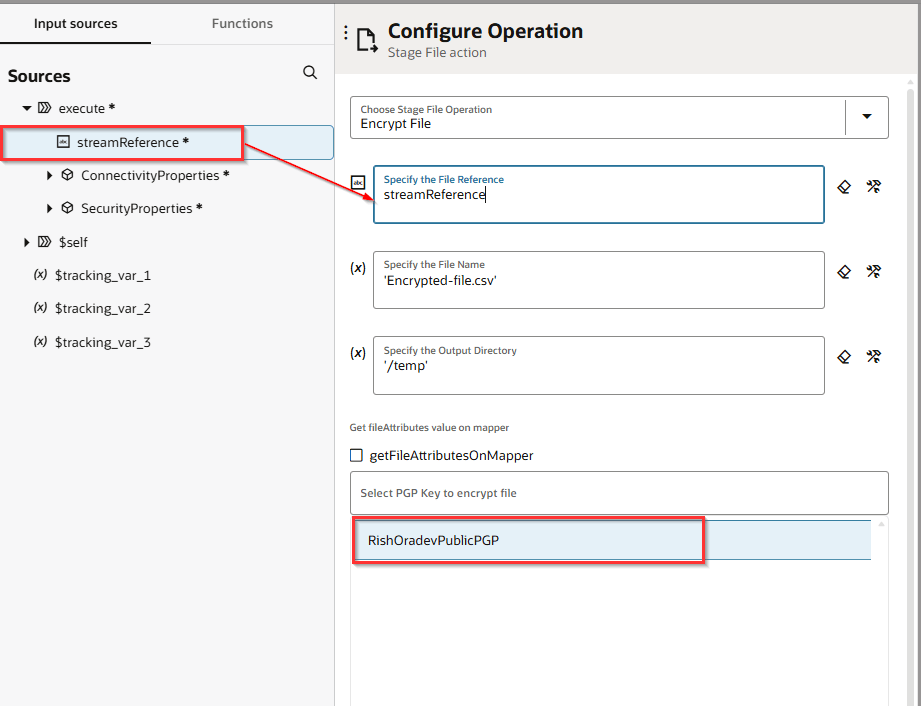
Click Finish.
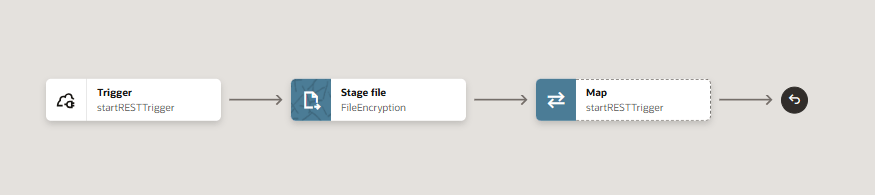
Add a Notification action.
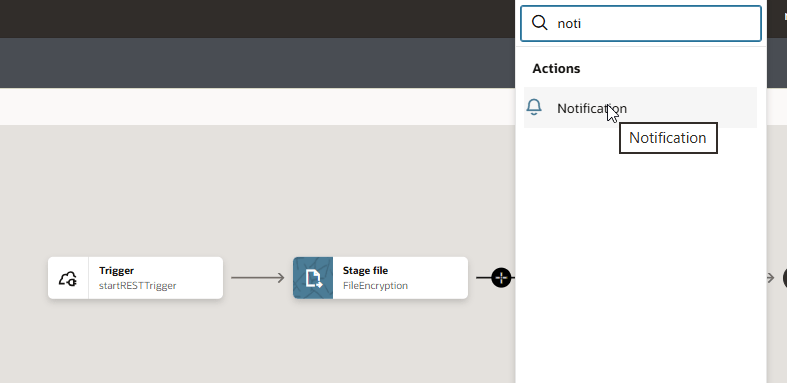
We will add a Notification action to Send encrypted file via email.
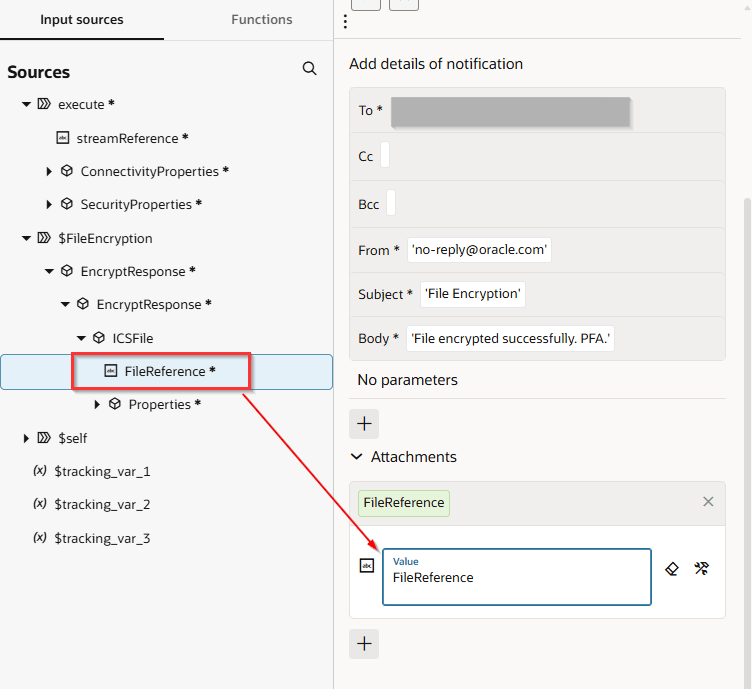
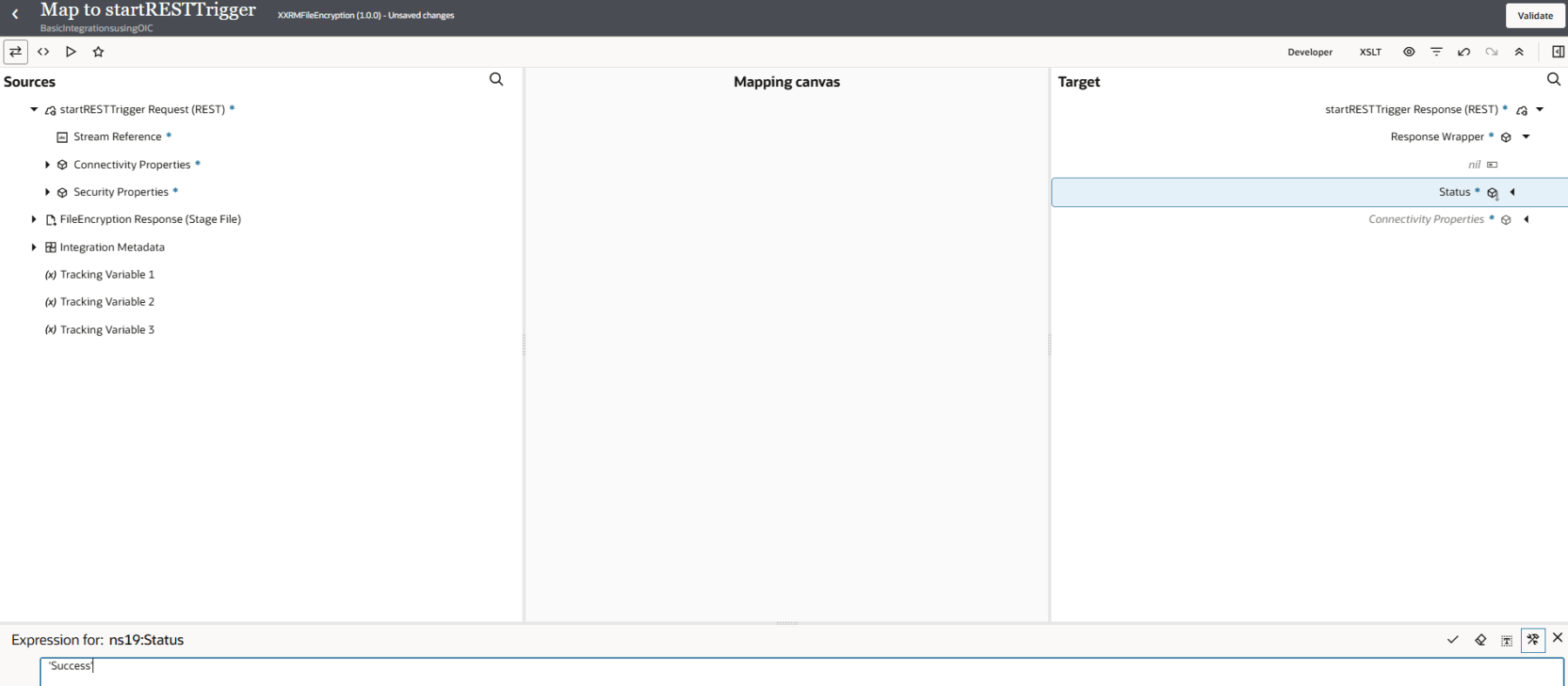
Edit the Mapper. For this demo I’ll add a static value to the Status target node. Validate the mapper.
Add the Primary Business Identifier as follows:
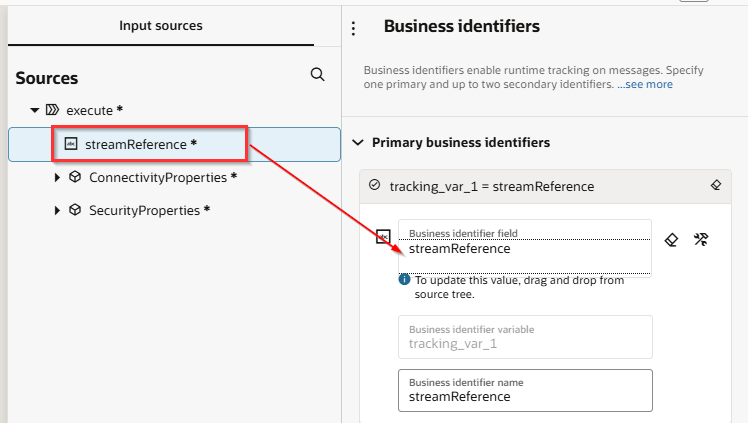
Save and activate the integration.
Testing the encryption flow
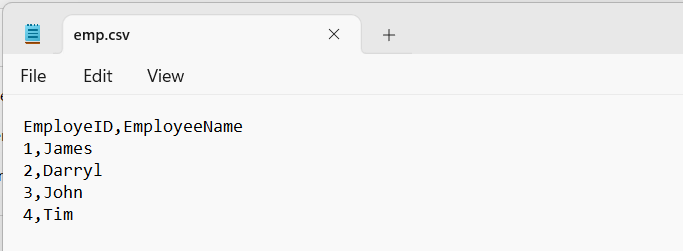
To test the flow, we will be using a sample csv file with basic employee information.
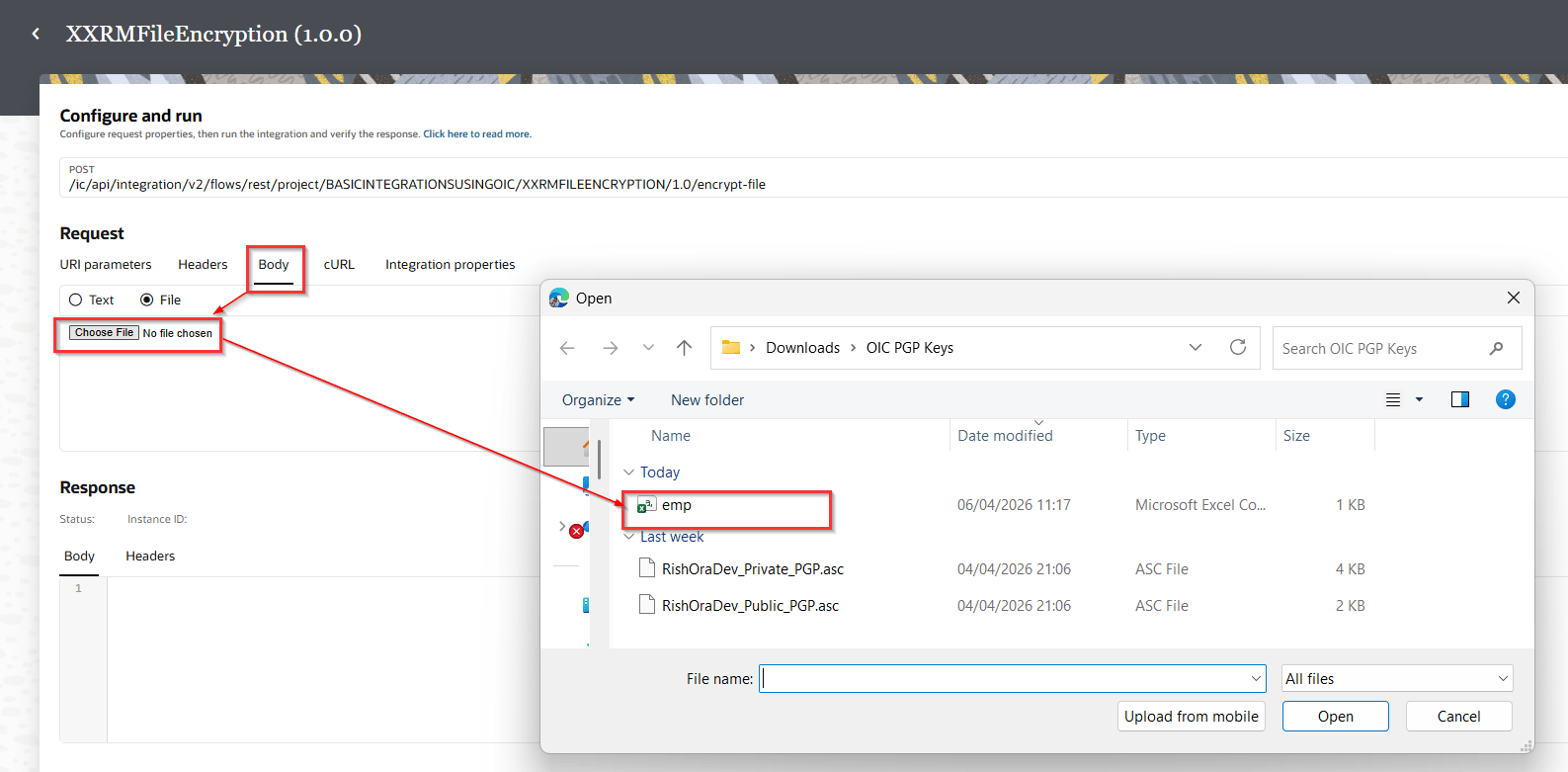
Now click the Run option for the integration. For the request body, upload your sample csv file. Run the integration.
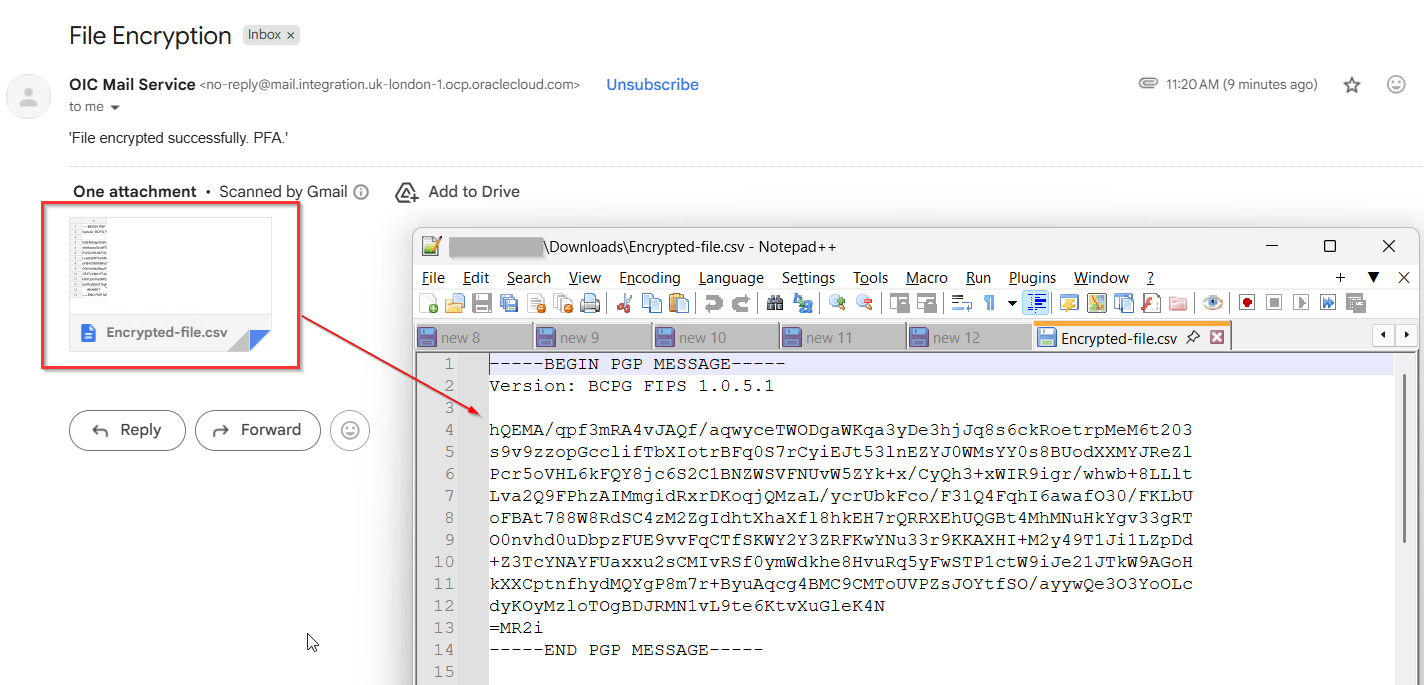
To confirm that the integration has worked, I would expect an email with the encrypted file attached. And voila!!!
Note that the file content is encrypted (unreadable text).
Hope this is useful. In the next blog, I’ll show how to decrypt a file in OIC. Happy learning!
References
 RishOraDev's Oracle Blogs
Pingback: Decrypting Files with PGP in OIC: A Step-by-Step Guide | RishOraDev's Oracle Blogs