Enterprise AI is evolving rapidly, but in many organisations the primary bottleneck is no longer model capability – it’s execution. While large language models can summarise, reason, and plan effectively, enterprises typically cannot allow them to directly call APIs or trigger business processes without robust governance, controls, and oversight.
This is where Oracle Integration Cloud (OIC) can evolve beyond a traditional integration platform into a secure execution layer for AI agents. By mediating API calls, enforcing policies, and orchestrating workflows, it provides the governance enterprises need. Emerging approaches like the Model Context Protocol (MCP) offer a structured way for AI tools to interact with enterprise systems, though safety still depends on the controls implemented around them.
In this article, we will explore how OIC projects can be transformed into AI‑ready MCP tools, enabling safe, auditable and governed automation across Oracle Fusion and beyond.
Why AI Needs a Controlled Execution Layer
AI models are increasingly capable at reasoning, but enterprises cannot allow them unrestricted access to critical systems such as ERP, HCM, SCM or financial workflows. These systems involve sensitive data, approvals and real transactions, where incorrect actions carry real risk.
Without proper controls, issues like hallucinations or misinterpretation could lead to unintended outcomes.
Oracle Integration Cloud (OIC) help address this by acting as a policy-driven, monitored and auditable mediation layer between AI and enterprise systems – enforcing access controls, orchestrating workflows and providing the governance needed for safe execution.
Why Oracle Integration Cloud Fits the MCP Model Perfectly
OIC already provides:
- Prebuilt adapters for Fusion, NetSuite, EBS, SAP and standard protocols like REST and SOAP
- Orchestration with branching, transformations and error handling
- Built-in security controls and monitoring
- Reusable integrations that encapsulate business logic
These capabilities make it a strong candidate for acting as a governed tool layer for AI agents. Rather than exposing raw APIs, enterprises can expose curated OIC integrations as higher-level operations. With an appropriate interface layer, these integrations can be mapped to MCP-style tools, enabling AI systems to interact with enterprise processes in a controlled and auditable way.
How MCP works in an Enterprise Context
The Model Context Protocol (MCP) allows AI models to use “tools” – structured operations that can be invoked with defined inputs and outputs.
In an enterprise setup:
- The AI model provides reasoning and decision-making
- MCP-style tools handle controlled execution
- OIC integrations can be exposed as these tools, encapsulating business logic and system interactions
This approach helps:
- Avoid exposing low-level APIs directly to AI systems
- Introduce controlled and policy-driven execution paths
- Provide monitoring and auditability for actions executed through integration layers
- Preserve business rules by enforcing them within integration workflows
So, let us walk through the steps on transforming an OIC project into an MCP server!!!
Transforming an OIC project into an MCP Server
On a very high-level, the process consists of the following steps.
- Create/Enable MCP server capability for an OIC Project
- Create a REST integration under the OIC project
- Register the integration as an AI tool
Step-1: Create/Enable MCP server capability for an OIC Project
The first step is to enable MCP Server capability for an OIC project. You can either create a new project or use an existing one. In either case, you will have to edit the OIC project and make it MCP Server enabled OR if you already have a project created, you can just edit the project and make it MCP Server enabled. As for the purpose of this blog we will first create an OIC project.

To create a new project, click Add.

Choose New project.

Provide a Name and Identifier for the project. Optionally add Keywords and Description.

Once the project is created, we need to enable MCP server capability for the project. To do that, click on the edit button on the top-right hand corner.

Check the checkbox to Enable MCP server.

That is all we need to do to enable MCP server capability for our OIC project.
Step-2: Create an Integration
Now that we have created the project, we’ll create an integration. For this demonstration we will create a simple OIC REST integration, which will have the invoice number as the input payload and return the details of the invoice in the response. The following screenshot shows the details of the invoice.

The Request Payload takes the Invoice Number.

The Response Payload returns the details of the invoice.

The mapper is shown below.

Once you have created the integration, Activate and run the integration. Run the integration to ensure it is working fine.

Step-3: Register the Integration as an Agentic AI Tool
Now that we have a working OIC integration, we will have to register the integration as an agentic AI tool within the project. To do that click on the menu of the integration and click on Create agentic AI tool.

Provide a Name and Identifier for the integration. Click on Create.

You will be prompted to add Description and Guidelines for the tool. Provide a Description for the tool. Also define any Parameters. A brief description and guidelines and parameter configuration is given below.
Guidelines: Guidelines are optional system-level prompts provided to the LLM to guide its decision-making, particularly in determining when to invoke a tool versus when not to.
Parameter configuration: Parameter configuration defines the inputs for an integration and governs which of those inputs are visible to the LLM. To ensure clarity and security, only business-relevant parameters should be exposed, while technical or system-level parameters should remain hidden.
Once you have completed the configuration, click Save.

You can check the tool that you just created by navigating to the AI Agents menu under Tools section.

And that’s it really all you have to do turn your OIC projects into MCP servers and each of the integrations as a separate tool for the agents. For the demonstration purposes, we will be using Postman the MCP server capabilities for our integration.
Test MCP Server using Postman
Within Postman, navigate to File> New.

Select Model Context Protocol(MCP).

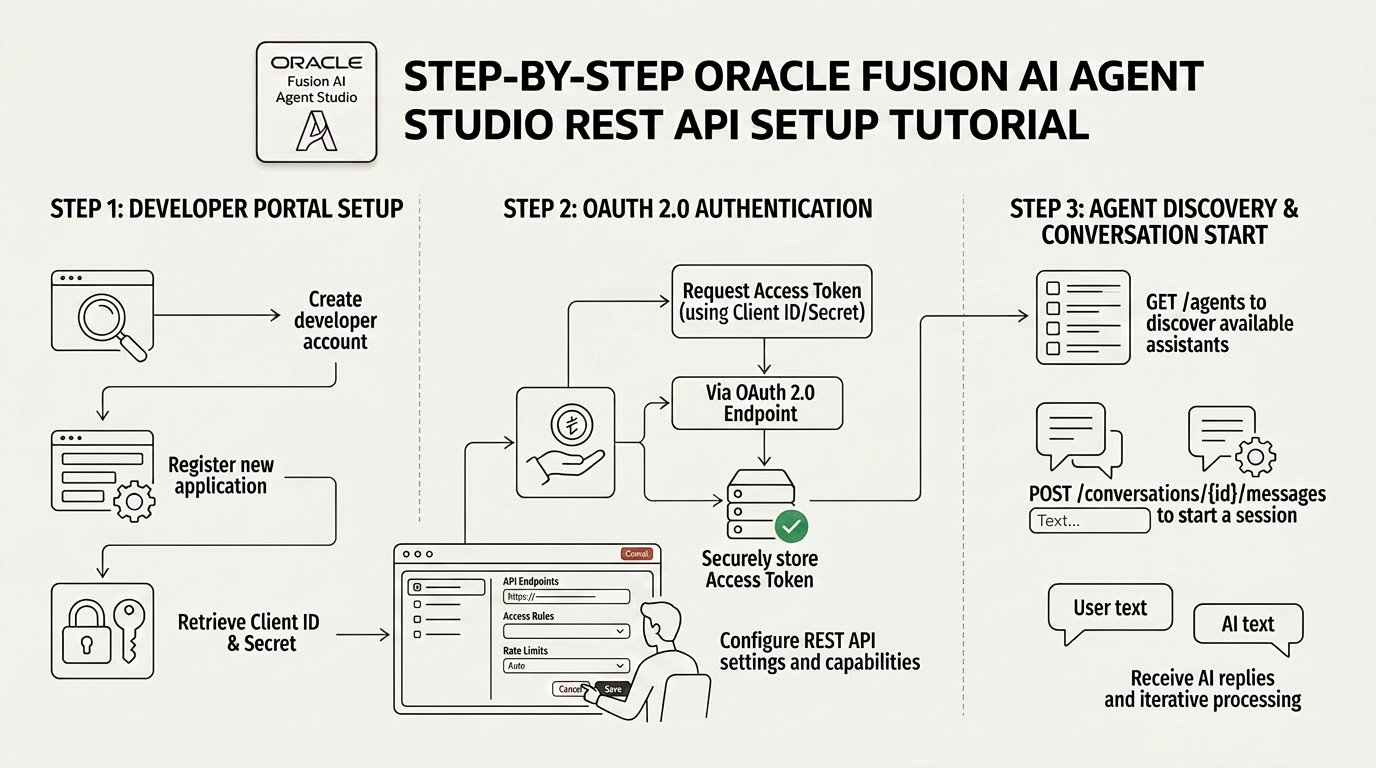
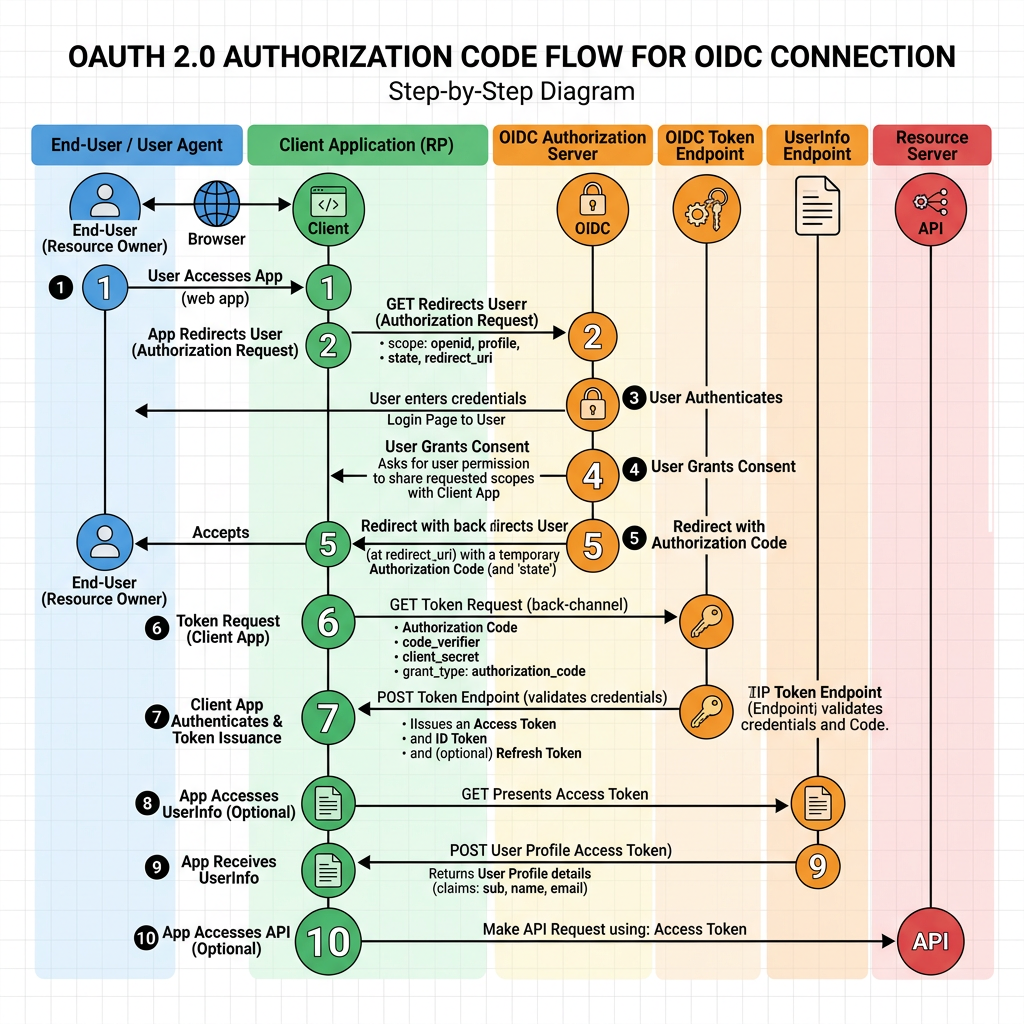
Firstly, we need to configure OAuth client credentials in Postman. I have explained how to configure OAuth client credentials, in details, in one of my previous blogs. Please click here to check the step-by-step process. I will use the same token here.
Once the OAuth is configured, you will need the MCP Server URL to invoke the MCP server. Use the URL below. Replace the sections highlighted in bold accordingly.
| MCP Server URL |
| https://<NameOfServiceInstance>.integration.<region>.ocp.oraclecloud.com/mcp-server/v1/projects/<ProjectName>/mcp |

Click Run. If the invocation is successful, you should be able to the Tool that we configured under Message.

Select the tool. Provide the value for the input payload, in our case, the invoice Number. Click Run.

You can check the response in the Response tab.

To confirm, login to your OIC console and verify the integration invocation from the Instances tab under Observability.

Congratulation!!! You have just managed to turn your OIC Projects into MCP‑Enabled AI Tools.
Hope this was useful. Happy learning!
References




Leave a Reply